This feature augments Business-to-Business operations by enabling users to select multiple B2B orders from the order backlog and manage them via a dedicated B2B Dashboard. The dashboard provides a progress overview, key data fields, and the capability to generate pick streams. Orders can be manipulated through drag-and-drop functionality for prioritization and subsequent reprioritization.
How to Prioritize Orders
Select Orders for Prioritization
Log into Stord WMS
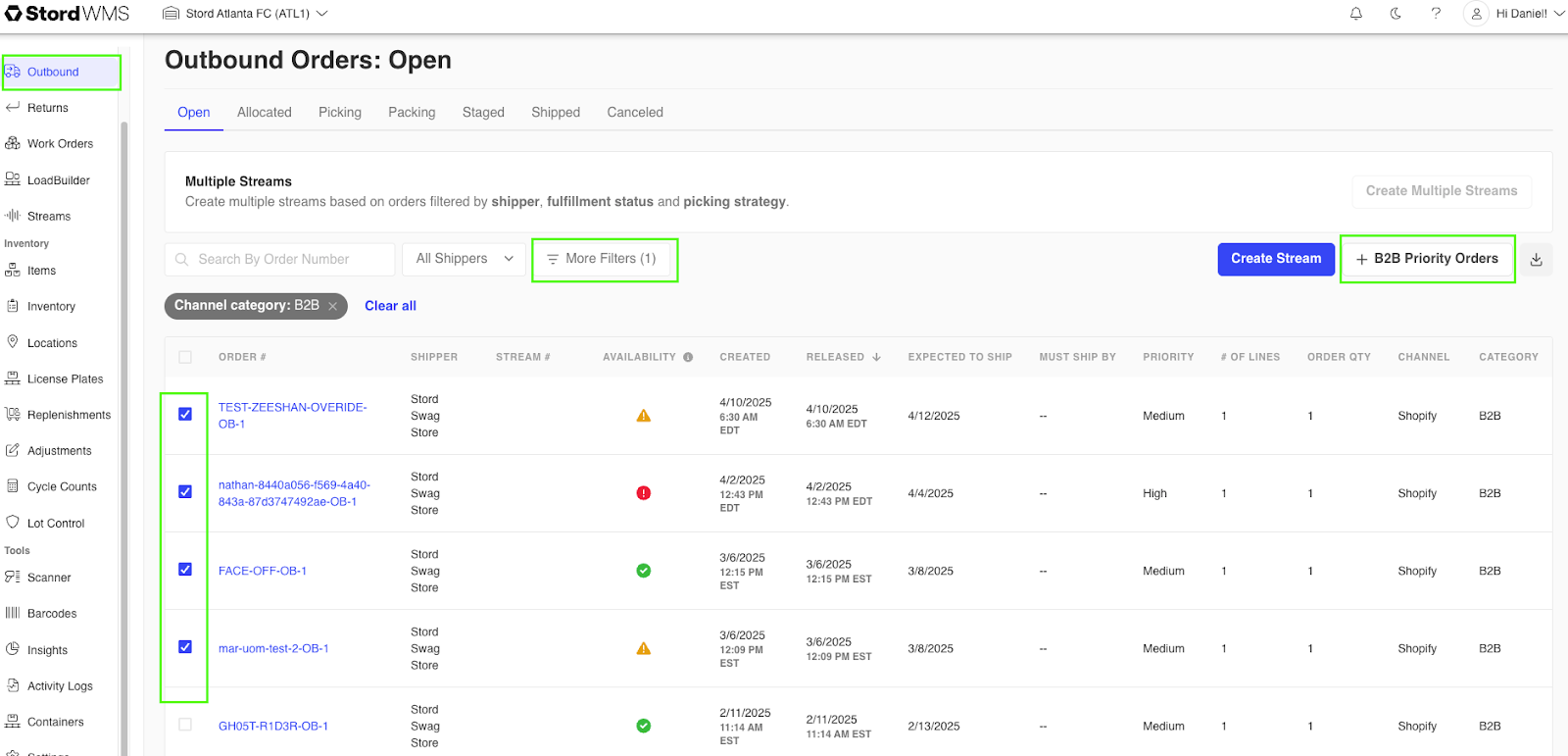
Navigate to the “Outbound” Tab
Select “More Filters” .
Under “Channel Category” Select B2B orders.
Filter/sort as necessary to locate the orders you wish to prioritize and track.
Check the box next to the orders you wish to prioritize and track.
Click “+B2B Priority Orders” button.
Your order Selection has been added to the B2B Dashboard!
Manage Prioritized Orders from B2B Dashboard
Navigate to the B2B Dashboard
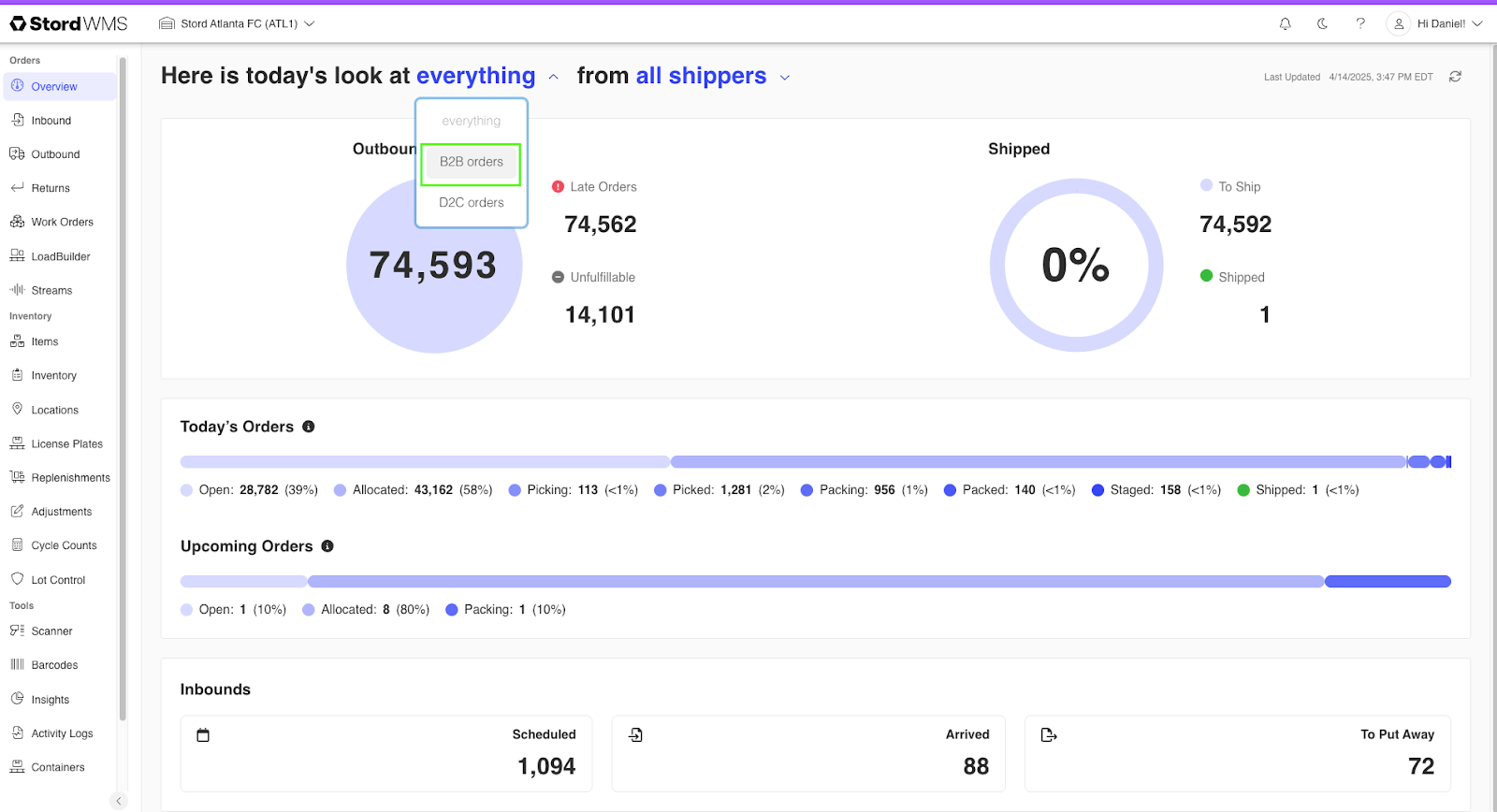
Navigate to the WMS Overview Tab
Select the "Everything" Drop Down
Select “B2B Orders”
Manage Order Priority
Click and hold on an order.
Drag and drop order to the desired position in the order list.
Create Pick Stream:
- Selecticon on right hand side of order. The "Create Stream" menu will appear.
- Configure pick stream and click the "Save" button.

Note: You can only create streams for unallocated orders
Remove Order From Priority list: Selecticon on right hand side of order.

Note: Orders will automatically fall off of priority list when Shipped

Was this article helpful?
That’s Great!
Thank you for your feedback
Sorry! We couldn't be helpful
Thank you for your feedback
Feedback sent
We appreciate your effort and will try to fix the article